Security checklist
Secure Devices Crypto Wallet Checklist
You sit down to open your wallet—perhaps to regain access or transfer funds—and at that very moment, your laptop prompts you to install an update, and strange pop-ups appear on your phone’s screen. This is exactly the moment I want you to pause: if the device isn’t trustworthy, then your wallet session isn’t trustworthy either.
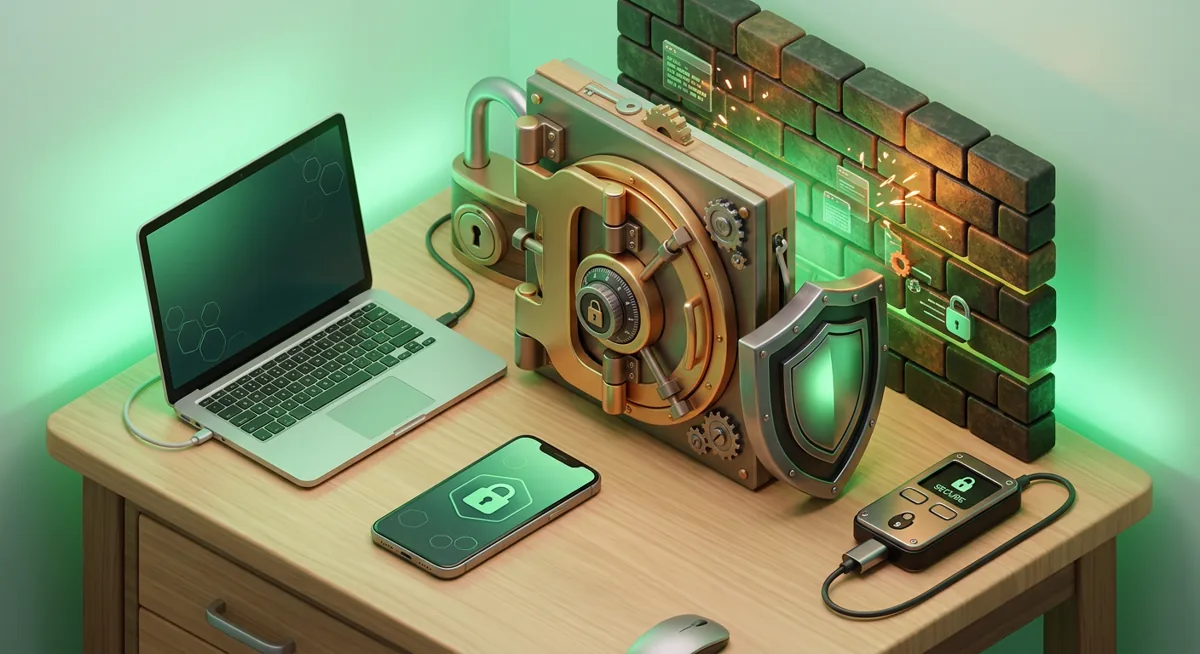
In short
- Before opening, restoring, connecting, or confirming any actions in a cryptocurrency wallet, ensure that your device is secure.
- Before performing any actions with your wallet, run a scan using Windows Defender, Bitdefender, Avast, or another reliable mobile antivirus app.
- Install all Windows security updates, keep the Windows firewall enabled, and uninstall any programs you don't recognize.
- Follow the "least privilege" principle by performing wallet operations from a standard account rather than an administrator account.
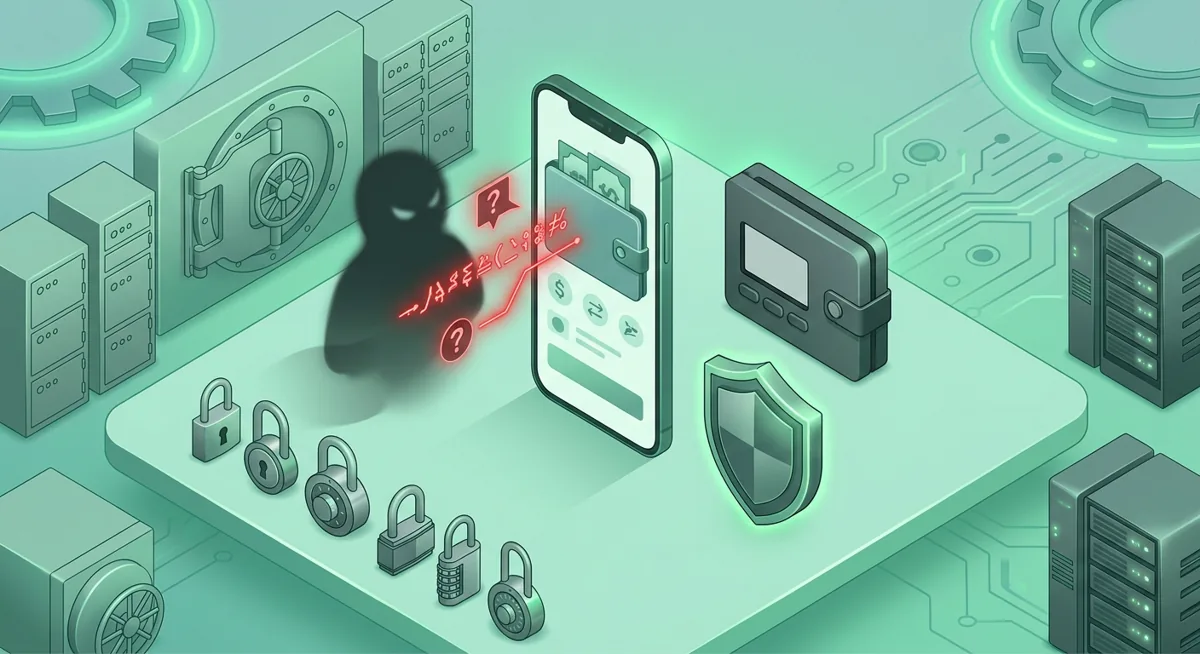
- If a screen, support agent, or website asks for your recovery phrase, stop because the safest device cannot protect funds from a fake recovery trap.
What should you check before using a crypto wallet?
This secure devices crypto wallet checklist is the routine I use before I help someone open a wallet, connect to a site, restore access, or move funds. The goal is to reduce the chances that malware, a fake prompt, or a careless setting gets between you and a correct decision.
Warning: If you type your recovery phrase into a fake wallet page, fake support chat, browser popup, or screen-sharing session, funds can be drained even if your antivirus looks clean. Device security helps, but it does not cancel out a recovery phrase mistake.
Step one: pause before opening the wallet
- Close every tab, chat, email, and message that is not needed for the wallet task.
- Do not follow wallet prompts from ads, direct messages, or search results.
- If someone is rushing you, stop the session. Urgency is a common pressure tactic.
- If you are already dealing with a suspicious message, compare it with Common wallet scams: phishing and fake recovery traps before touching the wallet.
Step two: update the operating system
- Run a windows security update before you open a desktop wallet, browser wallet, or exchange session on a Windows machine.
- Restart if the system asks for it. A pending update is not the same as an applied update.
- On a phone, apply the current system update from the device settings.
- Avoid wallet activity on devices that are no longer receiving security updates.
Step three: run an antivirus scan
- On Windows, run an antivirus scan with Windows Defender, Bitdefender, or Avast if that is the security tool you trust and maintain.
- Let the scan finish before opening the wallet.
- If the scan finds something, do not continue with wallet activity from that device until it is cleaned and restarted.
- If you use antivirus for pc, make sure real-time protection is on.
Step four: check the phone before wallet approvals
- Run a phone antivirus scan if you use the phone for wallet apps, exchange logins, passkeys, or approval prompts.
- Remove apps you do not remember installing.
- Review accessibility permissions, notification access, screen overlay permissions, and keyboard apps.
- Do not approve wallet prompts on a phone while another person is guiding you through a screen share or chat.
Step five: confirm firewall and network basics
- Keep Windows Firewall turned on unless you have a clearly managed replacement.
- Avoid public Wi-Fi for wallet recovery or large transfers.
- Disable file sharing and remote access features you do not use.
Step six: remove risky browser clutter
- Remove browser extensions you do not actively use.
- Keep only the wallet extension you intend to use, and confirm its name from the wallet provider’s official website by name only.
- Do not install a wallet or extension because a support agent, social media account, or pop-up told you to.
- Use a separate browser profile for wallet activity if possible.
Step seven: use least privilege access
- Do wallet tasks from a standard user account, not the administrator account you use to install software.
- Keep administrator permission for maintenance only.
- If a wallet website asks you to install a helper tool, remote access app, or unknown browser component, stop.
- Least privilege access limits how much damage one bad click can cause.
Step eight: check backups without exposing secrets
- Confirm that you can find your wallet backup materials before recovery, but do not type the recovery phrase into any website or chat.
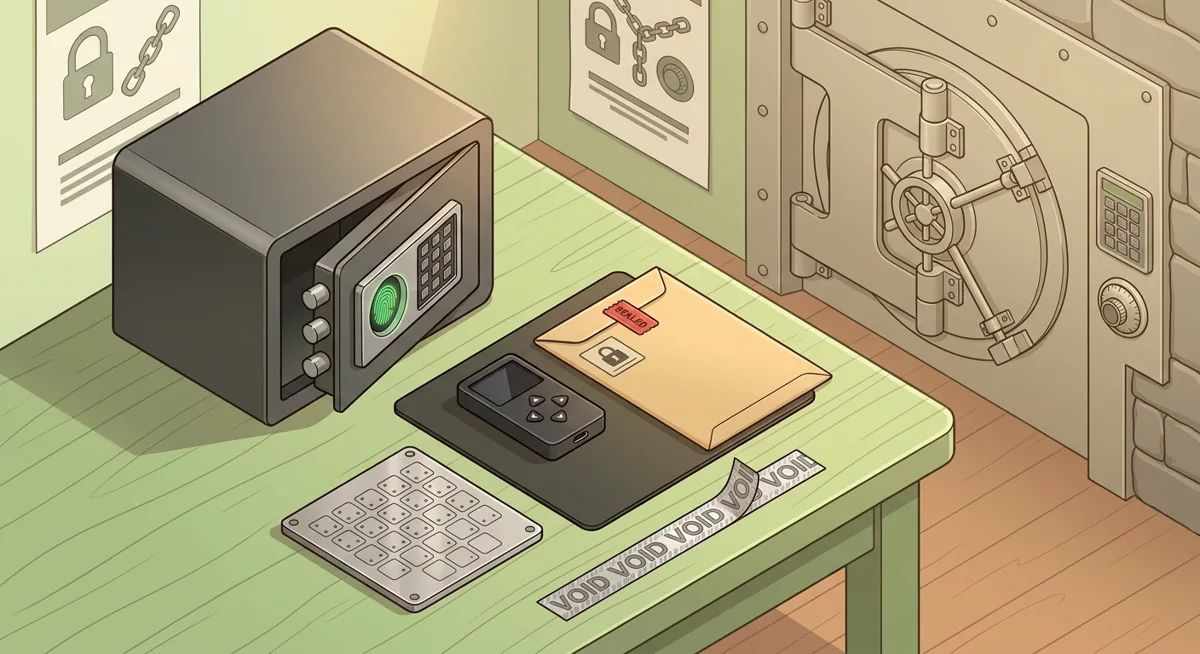
- Keep recovery materials away from cameras, shared notes apps, screenshots, and cloud folders.
- If you use physical storage, review Fingerprint Safe for Seed Phrase Storage: Security Checklist for safer storage habits.
- If you are preparing account recovery questions for exchange or email accounts, see Safer Account Recovery Questions for Crypto Users.
Step nine: verify the task before signing
- Read the wallet prompt slowly before approving.
- If the action is unclear, reject it.
- If you are connecting to a site, ask whether the connection is necessary for the task.
- Before moving funds after a scare, run through Crypto Scam Checks Before You Move Funds.
Step ten: know when to switch devices
- Use a different device if the current one shows unknown security alerts, repeated popups, browser redirects, or unexplained wallet behavior.
- Do not use a device that someone else has recently controlled remotely.
- If you suspect a wallet or chain issue rather than a device issue, use Wallet Blockchain Security Checklist Before Support before contacting anyone who claims to help.
Why do these checks matter for wallet safety?
Updates close doors you cannot see
A wallet session depends on the operating system underneath it. If Windows, macOS, Android, or iOS is missing security fixes, a malicious page or app may have more room to interfere. I ask people to update first because it removes known weak spots before money is on the line.
Here is the practical what-if: you open a wallet to send funds, but your browser is already being redirected by a bad extension or infected profile. You may think you are approving a normal connection while the device is showing you a manipulated path.
Antivirus is a warning system, not permission to be careless
Windows Defender, Bitdefender, and Avast can help catch known threats. An antivirus scan can reveal unwanted remote tools, suspicious installers, and malware that watches browsing activity.
But I never treat a clean scan as permission to trust every prompt. New scams often rely on persuasion, not malware. A fake recovery page can steal funds without infecting the computer.
Firewalls and networks reduce unnecessary exposure
Windows Firewall matters because wallet users often forget how many apps talk to the internet in the background. If remote access or sharing is open when it should not be, someone has more chances to interact with the device.
If you are restoring a wallet, entering exchange credentials, or approving a transaction, the network and firewall posture deserve attention.
Browser extensions can see too much
Many wallet problems begin in the browser, not in the wallet itself. Extensions can read pages, change what you see, or inject content. A clean browser profile keeps the wallet environment simple.
My rule is protective: if an extension does not help with the wallet task today, it does not need to be present today.
Least privilege access limits the blast radius
Least privilege access means using only the permissions needed for the job. For wallet use, that usually means a standard account.
Imagine you accidentally open a bad attachment before a wallet session. If you are already using administrator access, that mistake can carry more power. If you are using a standard account, the device may have more chances to block deeper changes.
Recovery phrases require a separate level of care
No device checklist can save funds if the recovery phrase is handed to the wrong screen. A recovery phrase is a list of words that can control the wallet. Treat it like the wallet itself, not like a password you can reset.
If someone claims you must verify, synchronize, validate, unlock, or migrate a wallet by entering that phrase into a website, stop. That pattern is common in phishing and fake support traps.
Calm beats speed
Most preventable wallet losses happen when the user is rushed. The safest habit is to slow the session down until each prompt makes sense. If you feel pressure, confusion, or embarrassment, take that as a security signal. You can pause, restart from a cleaner device, or refuse a signature.
Questions and answers
- Do I need antivirus for pc before using a crypto wallet?
I recommend this to Windows users. Windows Defender, Bitdefender, or Avast can help detect malware before you open your wallet, but you should still avoid fake recovery pages and suspicious signature requests.
- Is a phone antivirus scan necessary for mobile wallets?
It is a useful check if your phone holds wallet apps, approval prompts, exchange access, or passkeys. Also review app permissions, especially accessibility, keyboard, notification, and overlay access.
- Should Windows Firewall be on for wallet activity?
Yes. Keep Windows Firewall on unless you have a managed replacement you understand. It reduces unnecessary exposure from apps and services that should not be reachable.
- What is least privilege access in plain English?
It means using a standard account for wallet activity instead of an administrator account. If something bad runs, it has fewer permissions to make deep system changes.
- What should I do if my device seems infected right before a transfer?
Stop the transfer. Use a clean, trusted device, run security checks, and do not enter your recovery phrase into any site or chat. If there is scam pressure involved, review known wallet scam patterns before taking the next step.