Security checklist
Crypto Device Security Checklist for Windows and Phones
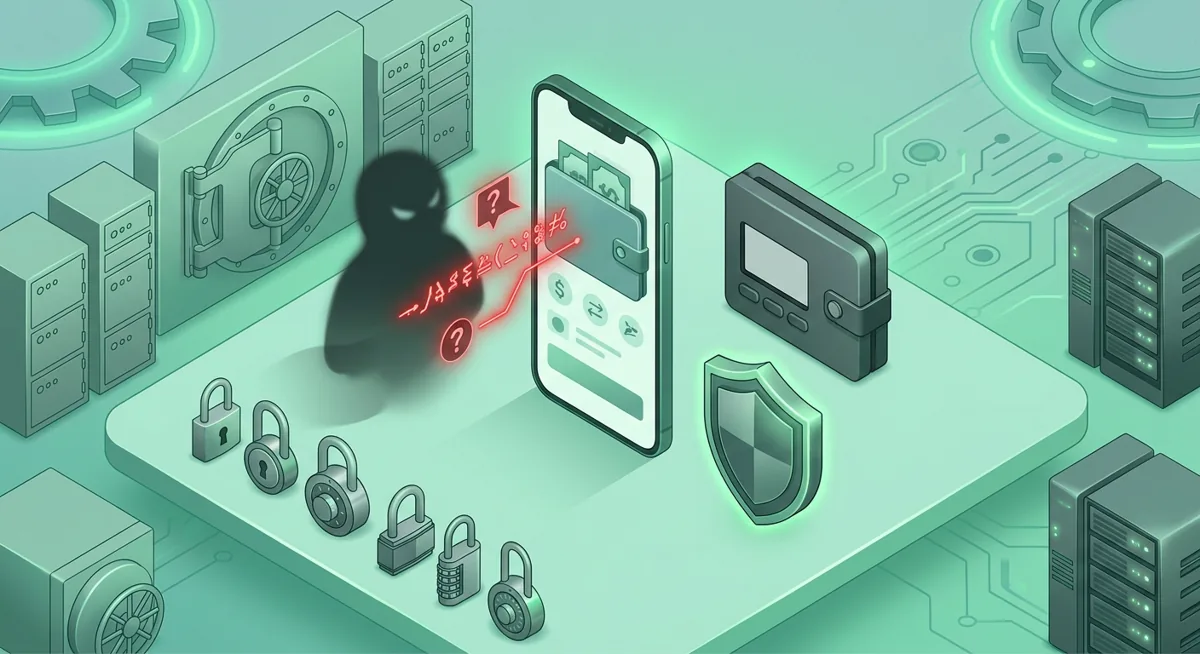
You open your wallet app, see a strange browser pop-up, and suddenly every tab starts to look suspicious. I’ve helped people in situations like this, and the safest way to respond is not to panic, but to thoroughly check your device before signing anything, restoring data, or transferring funds.
In short
- Antivirus software for windows helps reduce device risk, but wallet safety also depends on updates, browser hygiene, backups, and signing discipline.
- "Windows Security" and "Windows Defender" are useful built-in security tools, while Bitdefender, Avast, and Malwarebytes allow you to expand your system's scanning and cleaning capabilities.
- Checking an iPhone for viruses typically involves analyzing apps, settings, profiles, browsers, and account access, rather than a traditional file scan.
- Never type a recovery phrase into antivirus software, support chat, browser forms, or any website claiming to verify a wallet.
- If a device acts strangely before a wallet transaction, stop signing, disconnect wallet access, and check the device from a calmer environment.
What should I check before using a crypto wallet on this device?
Start with the risk in plain words: your wallet can be strong while your device is weak. If malware, a fake browser extension, remote access software, or a copied scam page gets between you and the transaction, the wallet may only show you the final request.
Core device checklist
- Update the operating system before opening a wallet, whether you use Windows, macOS, iPhone, or Android.
- Restart the device after updates so security changes actually take effect.
- Remove apps you do not recognize, especially screen-sharing tools, remote access tools, coupon extensions, unused wallet extensions, and unknown cleaners.
- Keep only the browser extensions you truly need for crypto, and disable the rest before signing.
- Use a separate browser profile for wallet activity so email, social media, and research do not share the same session.
- Lock the device with a strong passcode or password, not only face or fingerprint unlock.
- Use a password manager for exchange and wallet-related accounts so you do not reuse passwords.
- Protect email first, because email often controls exchange logins, password resets, and support conversations.
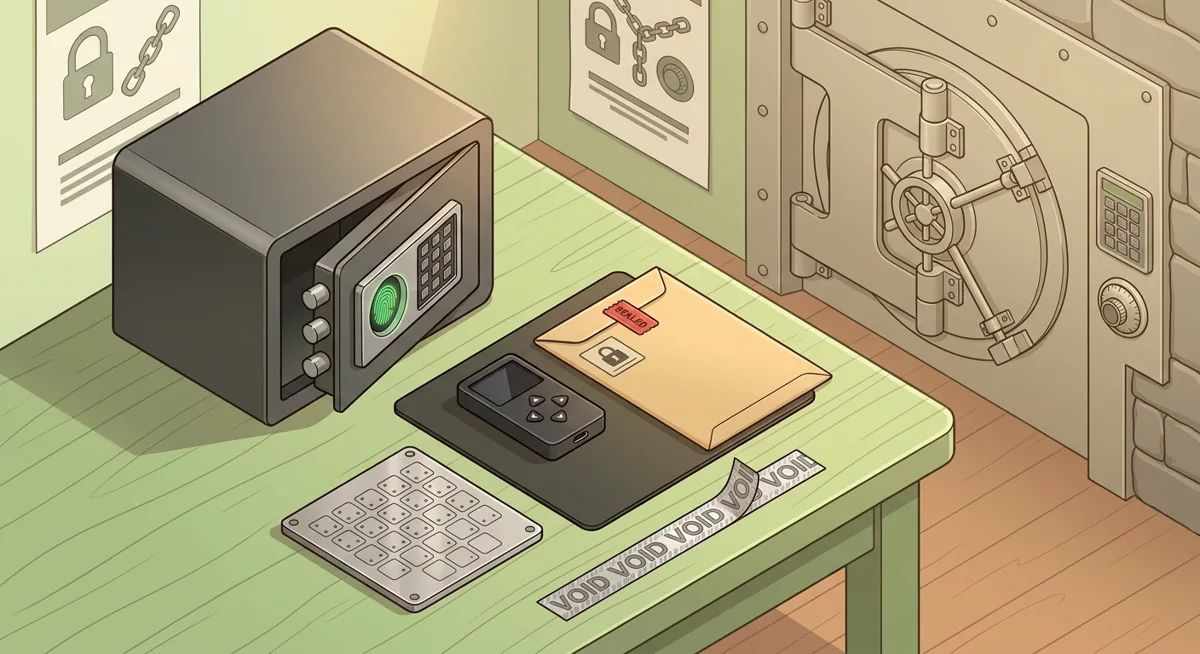
- Keep your recovery phrase as an offline list of words, never in photos, notes apps, cloud documents, email drafts, or chat messages.
- If you use physical recovery storage, review my Fingerprint Safe for Seed Phrase Storage: Security Checklist before trusting the location.
Warning: a single wrong approval can lose funds. If a website asks for your recovery phrase, asks you to “sync” a wallet, or pushes you to sign quickly, stop.
Windows checklist
If you are searching for antivirus software for windows, treat it as one layer, not the whole plan. Windows Security and Windows Defender can help with baseline protection, and some users prefer Bitdefender, Avast, or Malwarebytes for added scanning, cleanup, or second opinions.
Step one: Open Windows Security and confirm core protections are on.
Step two: Check that Windows Defender or your chosen antivirus software is updating properly.
Step three: Run a full scan if the device behaved oddly, if you installed a new app, or if you clicked a suspicious file.
Step four: Review startup apps and browser extensions in every profile.
Step five: Before using a hardware wallet, read the on-device screen carefully. If the computer screen and device screen disagree, trust the hardware wallet screen and cancel.
For antivirus software for pc decisions, I prefer boring, well-maintained setups over crowded ones. Use one main protection tool, then use a reputable scanner such as Malwarebytes when you need a second look.
macOS checklist
Mac users still need device hygiene. Antivirus for mac can be useful, especially if you install many apps, handle outside files, or use browser wallets.
Step one: Install macOS updates and restart.
Step two: Review Login Items and remove unfamiliar background apps.
Step three: Check browser extensions, especially wallet-related ones.
Step four: Review which apps can record the screen, control the computer, access files, or use accessibility permissions.
Step five: If you see unknown configuration profiles, pause and investigate before using a wallet.
iPhone checklist
Antivirus software for iphone is different from desktop antivirus software. Because iPhone app access is more restricted, an iPhone virus scan often means checking settings, profiles, apps, browsers, and account access.
Step one: Update iOS.
Step two: Remove apps you do not recognize or no longer use.
Step three: Check for unknown profiles or device management settings.
Step four: Review Safari settings, saved website data, and wallet browser connections.
Step five: Check Apple ID security, trusted devices, and recovery options.
Step six: If a wallet app shows unexpected prompts, do not reinstall in a panic. First confirm you still control your recovery method and that you are using the official app name.
Android checklist
Android gives users flexibility, which also means more responsibility. Be careful with apps outside the usual app store flow, keyboard apps, clipboard tools, file managers, and screen overlay permissions.
Step one: Update Android and security patches.
Step two: Remove apps you do not recognize.
Step three: Review app permissions for accessibility, notifications, screen overlay, SMS, files, and clipboard access.
Step four: Turn off installation from unknown sources unless you have a specific, temporary reason.
Step five: Scan with your chosen mobile security tool if the phone has shown pop-ups, battery drain, or strange app behavior.
Step six: Recheck wallet connections inside wallet apps and disconnect sites you do not actively use.
Before you move funds
When the device feels clean, slow down one more time. Confirm the recipient address on the trusted screen available to you. For larger moves, consider a small test transaction if fees and timing make that reasonable. If the transaction relates to a support issue, use my Wallet Blockchain Security Checklist Before Support before sharing details with anyone.
If you arrived here after a strange message, fake airdrop, or urgent warning, compare it with Common wallet scams: phishing and fake recovery traps and Crypto Scam Checks Before You Move Funds. Scammers thrive when you rush; a checklist gives you friction.
Why does each device security step matter for crypto?
Updates reduce known exposure
Updates matter because criminals often reuse old weaknesses. I ask people to update before wallet work because it removes easy paths before we handle anything valuable.
Antivirus software catches some threats, not bad decisions
Antivirus software can detect many unsafe files, suspicious behavior, and unwanted apps. Windows Defender, Windows Security, Bitdefender, Avast, and Malwarebytes can all be part of a safer setup. But they cannot reliably save you from approving a malicious transaction, typing your recovery phrase into a fake form, or trusting a scam support account.
Browser extensions are high-risk for wallet users
Browser extensions sit close to the pages you view and the wallet actions you take. A malicious or abandoned extension can change what you see, inject pop-ups, or redirect you to a lookalike page.
Email and account recovery are part of wallet security
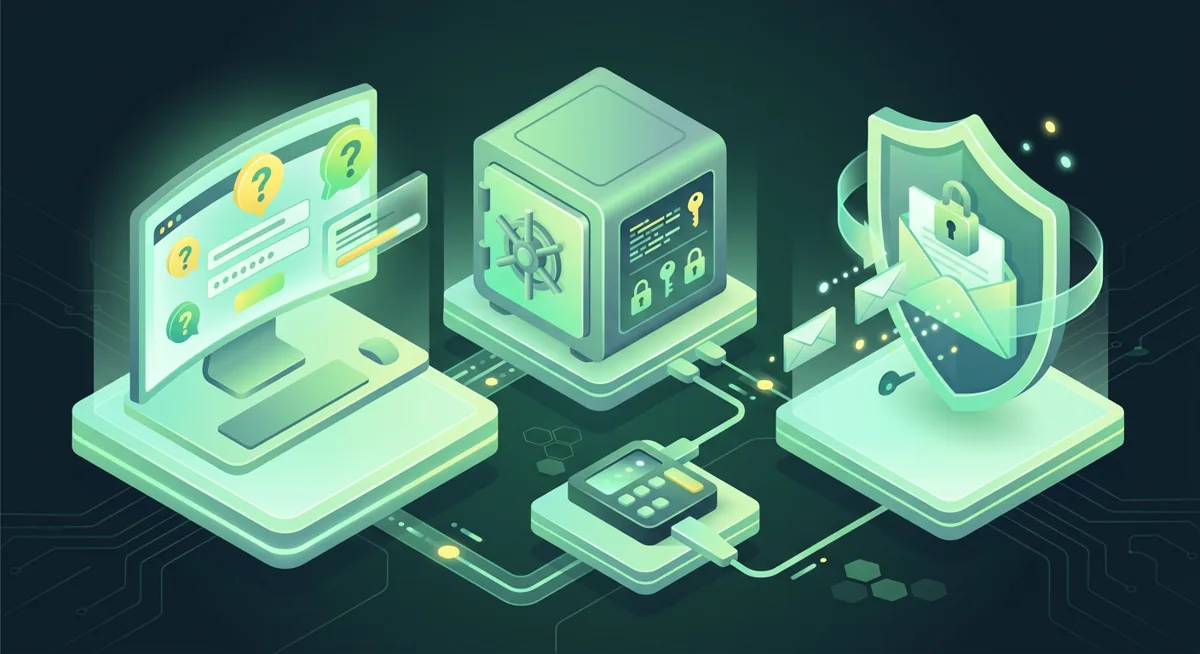
Many people separate device security from account security, but criminals do not. If they can control your email, they may reset exchange passwords, impersonate support, or pressure you during recovery. Use stronger recovery questions and methods; I explain safer patterns in Safer Account Recovery Questions for Crypto Users.
Phone checks prevent approval fatigue
Phones are where many people approve exchange logins, wallet prompts, and messages from friends. If your phone is cluttered with old apps and noisy notifications, it is easier to approve the wrong thing.
Hardware wallets still need a clean process
A hardware wallet helps keep signing separated from the computer, but it does not make every screen trustworthy. If the computer shows one address and the device shows another, cancel. If a website says your wallet must be “validated” with a recovery phrase, leave. If someone claims famous dormant coins are moving and invites you into a special deal, treat it as a scam pattern and read the Satoshi Nakamoto Wallet Claims: Scam Case Study.
The safest response to suspicion is to stop
If you suspect trouble, do not keep testing with real funds. Disconnect wallet sessions, close the browser, stop signing, and move to a trusted device if you have one. Write down what happened in plain language: what you clicked, what appeared, what you approved, and what changed.
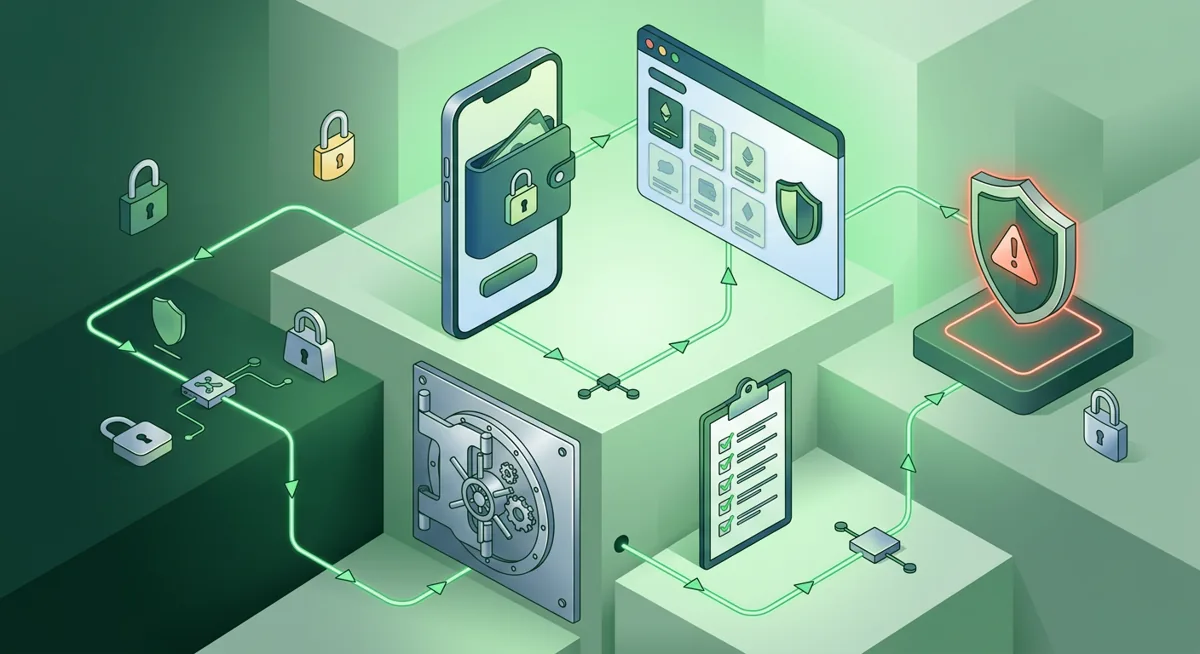
I like checklists because they reduce shame. You do not need to be a security engineer to protect yourself better. You need a repeatable routine: update, scan, remove clutter, verify screens, protect recovery access, and slow down when money is about to move.
Questions and answers
- Is antivirus software for windows enough for storing crypto?
No. Antivirus software for windows is useful, but it is only one layer. You also need updates, browser extension control, strong email security, offline recovery phrase storage, and careful wallet approvals.
- Should I use Windows Defender or a paid antivirus product?
Windows Defender through Windows Security can be a reasonable baseline when it is updated and active. Bitdefender, Avast, and Malwarebytes can add features or second-opinion scanning, but avoid random security pop-ups.
- Do I need antivirus for mac if I use a hardware wallet?
Antivirus for mac can still help, especially if you install many apps or browser extensions. A hardware wallet protects signing in important ways, but your Mac can still show fake pages, unsafe prompts, or misleading addresses.
- What does an iPhone virus scan mean for wallet users?
Checking an iPhone for viruses typically involves scanning apps, iOS updates, browser data, device management profiles, Apple ID access, and wallet connections. Do not enter your recovery phrase into any apps or websites that claim to check your wallet.
- What should I do if I already clicked a suspicious crypto link?
Stop signing transactions, close the page, disconnect your wallet, run a scan, and check your browser extensions and installed apps. If you’ve shared your recovery phrase, consider this wallet compromised and transfer any remaining funds using a “clean” device and a new wallet.