Guide
What Is Secure Boot for Crypto Wallet Devices?
You connect your hardware wallet, see a prompt to select firmware, and wonder whether the device really has the correct software installed. Such doubts are entirely justified: if the wallet runs on modified firmware, it becomes increasingly difficult to trust every address verification and every signature request.
In short
- A secure boot is a startup check that helps the device verify its firmware before launching the wallet's normal functions.
- Securely loading hardware wallets is of great importance, since it is on this device that transaction details are verified and approved.
- Setting up your Ledger Nano X will be more secure if you initialize it yourself, follow the on-screen prompts, and store your recovery phrase offline.
- Enabling a computer setting such as “safe boot” in user mode does not replace the firmware verification performed at the wallet level.
- If your recovery phrase has been compromised, create a new wallet on a secure device and transfer your funds; do not attempt to restore the security of your old wallet.
Key facts
| Ledger Nano X | |
|---|---|
| Supported coins & networks | Supported networks: Bitcoin, Ethereum, Solana, XRP, stablecoins Number of supported assets: Thousands of supported coins and tokens |
| Devices & platforms | Platforms: Desktop/laptop, Android, iOS |
| Price | — |
| Who controls the keys | — |
What should you know before you start?
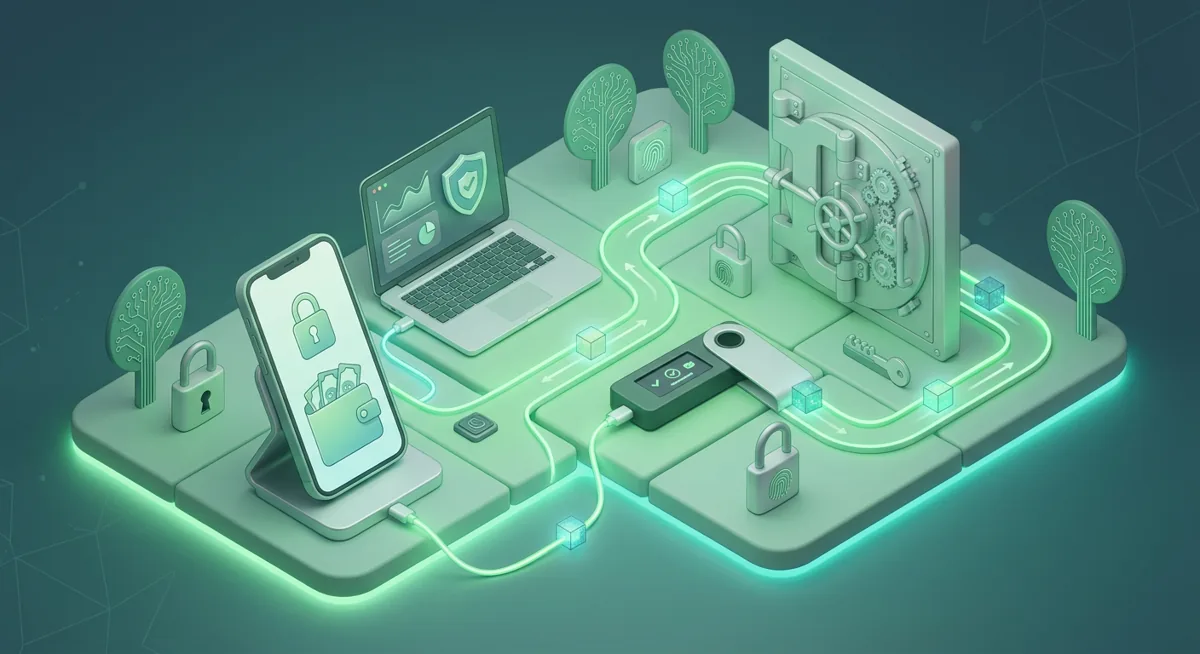
The plain risk is this: your wallet device is only useful if it runs the firmware you expect and shows truthful transaction details. When people ask, what is secure boot, I describe it as a startup gatekeeper. Before the device behaves like a wallet, it checks whether the firmware is allowed to run.
That does not make a device safe from every scam. It does help reduce the risk of a device quietly starting with altered code. For self-custody, that matters because you rely on the device screen to confirm receiving addresses, destination addresses, and transaction approvals.
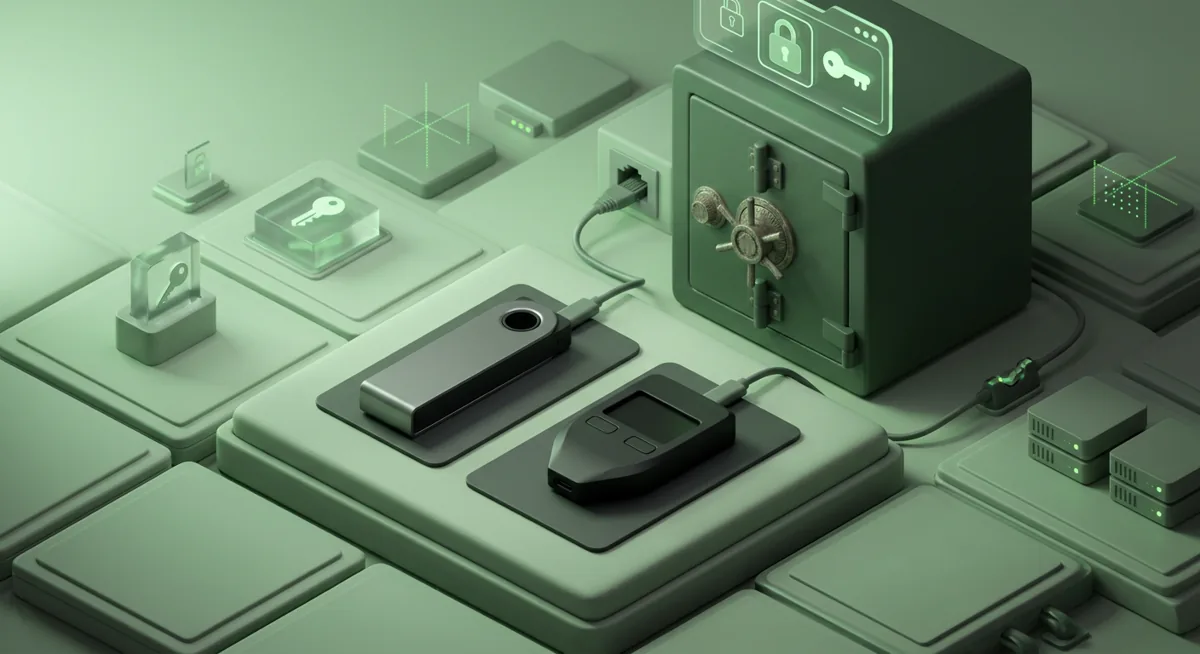
For a Ledger Nano X, treat secure boot as part of a wider routine, not as a single shield. Ledger Nano X works across Desktop/laptop, Android, iOS, supports networks including Bitcoin, Ethereum, Solana, XRP, stablecoins, and is designed for Thousands of supported coins and tokens. The broader the wallet activity, the more important it is to keep the device, recovery phrase, computer, and signing habits separated.
Before you begin, have these ready:
- Your Ledger Nano X, initialized by you rather than prefilled by someone else.
- The official Ledger software source named by Ledger.
- A computer or phone you normally trust for financial tasks.
- Paper or another offline method for recording the recovery phrase.
- Quiet time, because rushing wallet setup is how people miss warnings.
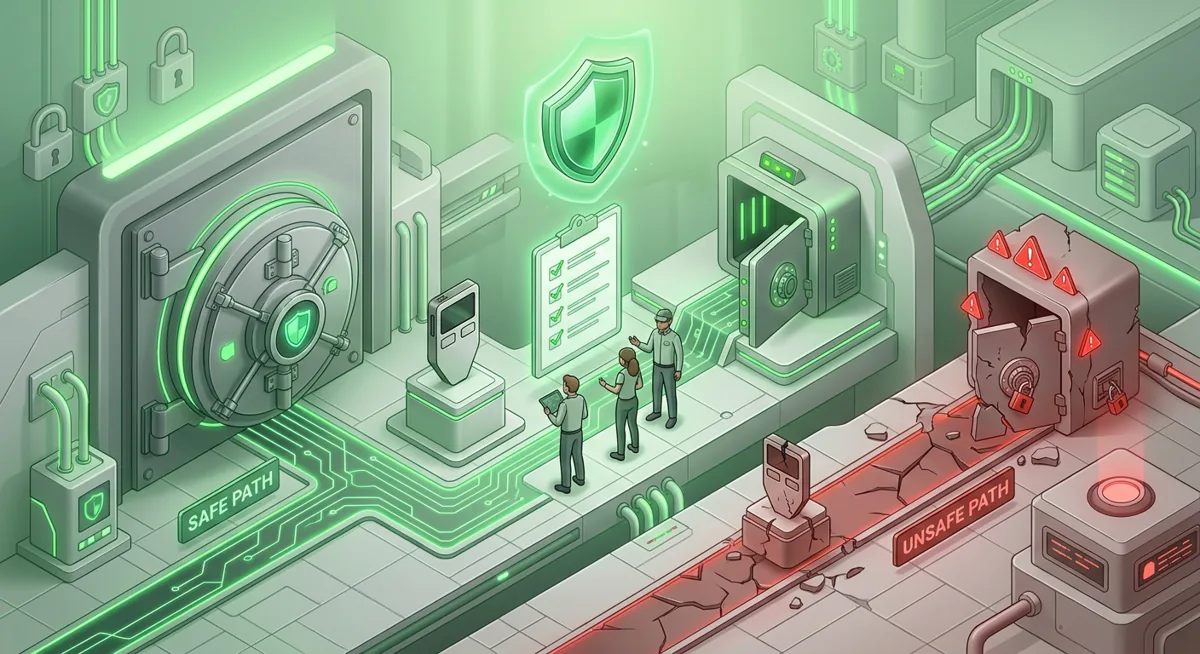
Safety precautions I use with people recovering from wallet incidents:
- Never type the recovery phrase into a website, support chat, cloud note, email, or photo app.
- Verify important addresses on the hardware wallet screen, not only on the computer or phone.
- Be suspicious of urgent messages claiming your firmware, account, or assets will be lost unless you act immediately.
- If the device arrives already set up, stop using it for funds and reset your plan.
For a broader baseline, I pair this with the Crypto Home Security Checklist: Virus Checker Basics and the storage habits in Wallet Basics for Safer Crypto Storage.
How do I use secure boot thinking when setting up Ledger Nano X?
These steps are not about changing hidden engineering settings inside the wallet. They are about using the device in a way that preserves the value of secure boot and device firmware security.
Step one — start from a trusted device path. Buy and prepare the wallet through a route you trust, then initialize it yourself. If someone gives you a ready-to-use wallet with a recovery phrase already written down, assume they may also be able to restore it.
Step two — prepare your computer or phone. Close distractions, remove suspicious browser extensions if you already have concerns, and avoid setup while a remote support session is active. If someone can see your screen and pressure each choice, they can push you into approving the wrong thing.
Step three — install and open the official Ledger app source named by Ledger. I do not follow wallet setup instructions from ads, direct messages, or popups, because phishing pages often copy branding well enough to fool a tired person.
Step four — connect the Ledger Nano X and watch the device screen. Secure boot and firmware checks are most useful when you respect device prompts. If the computer says one thing and the hardware wallet screen says another, slow down and trust the smaller trusted display first.
Step five — initialize the wallet on the device. Let the wallet generate its own recovery phrase. Write the phrase offline and keep it away from cameras, printers, shared drives, and password managers unless you have a carefully designed offline storage plan.
Step six — confirm firmware status through the official wallet software and the device prompts. If the software reports a firmware or authenticity concern, do not move funds to the device until you understand the warning.
Step seven — verify your first receiving address on the Ledger Nano X screen. Malware on a computer can replace a copied address in the clipboard. The hardware wallet screen is where I want the final check to happen.
Step eight — send only a small test transaction before using the wallet for larger storage. The amount is not the lesson; the process is.
Warning: if you enter a recovery phrase into a fake support page or approve a transaction you do not understand, secure boot will not save those funds. Secure boot helps the device start correctly; it cannot undo a signature you approve or a phrase you reveal.
Step nine — keep updates calm and deliberate. Firmware updates are normal, but urgency is a common scam ingredient. If a message threatens immediate loss unless you act, step away and verify through the official Ledger app source and your own bookmarks or typed address habits.
How does recovery work if the wallet is lost or replaced?
Recovery is based on the recovery phrase, which is a list of words created when the wallet is initialized. That list can recreate the wallet’s keys on a compatible device or wallet environment. I describe it carefully because it is both your rescue path and your highest-risk secret.
If the Ledger Nano X is lost, damaged, or reset, the funds are not stored inside the plastic and metal. The funds are recorded on their networks. The recovery phrase restores control over the keys that can move them.
Good recovery practice is boring on purpose:
- Store the phrase offline in a place protected from theft, fire, water, and casual discovery.
- Do not test recovery on a random website or unfamiliar app.
- Do not share the phrase with anyone claiming to be support.
- If you suspect the phrase was seen, photographed, typed online, or stored in cloud storage, treat it as exposed.
When a phrase is exposed, the safer path is to create a new wallet with a new phrase on a trusted device, then move funds to addresses from that new wallet. For incident steps, I would use Lost Seed or Exposed Keys: Cold Wallet Crypto Checklist and Wallet Recovery Steps When You Lose Access. For prevention, keep Protect Seed Phrases and Hardware Wallet Keys close.
What if secure boot or firmware checks raise a problem?
If the wallet software reports an authenticity, firmware, or secure element warning, pause. Do not send funds to the device while treating the warning as cosmetic. Restart from a calmer environment, confirm you are using the official Ledger app source, and read the on-device prompts carefully.
If the Ledger Nano X behaves differently from the instructions on its own screen, trust the device screen over a browser message. A fake page may tell you to reveal the recovery phrase to “repair” a wallet. Real recovery does not require giving that phrase to a support agent or website.
If an update appears stuck, avoid frantic repeated approvals. Disconnect only when the official instructions say it is safe, and keep the recovery phrase available offline in case the device must be restored.
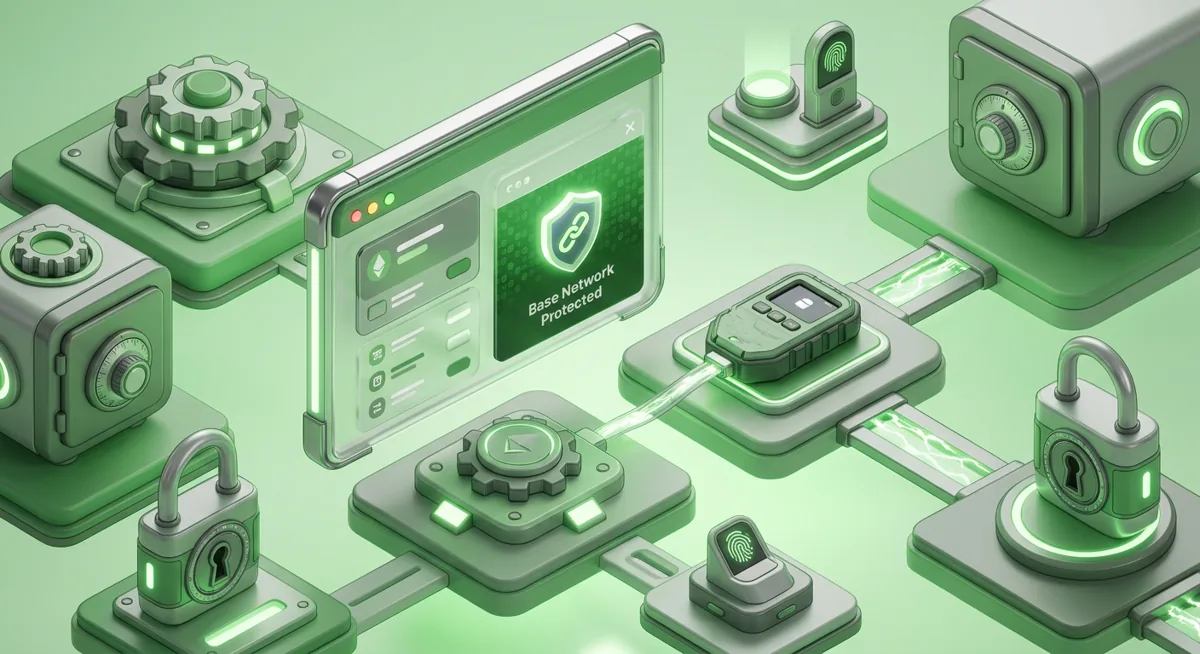
If you see the phrase secure boot can be enabled when system in user mode in a computer setting, understand the boundary. That phrase belongs to computer secure boot behavior, not proof that your hardware wallet firmware is valid. Computer secure boot can help your general device hygiene, but your wallet still needs its own device firmware security checks and on-screen verification.
If you bought a used wallet, received one as a gift, or found a recovery sheet already prepared, do not treat it as ready for savings. Reset the device, initialize it yourself, and create a fresh recovery phrase. If you cannot get comfortable with the chain of custody, use a different device.
If you approved a suspicious transaction, secure boot is no longer the main issue. Stop signing, review approvals from a trusted environment, move remaining funds to a fresh wallet when appropriate, and follow a recovery checklist from the self-custody guides at Self-Custody and Hardware Wallets for Safer Storage.
Questions and answers
- What is secure boot in simple terms?
Secure boot is a verification process that occurs at startup. It allows the device to verify the integrity of the firmware it is about to run before beginning to perform its normal functions.
- Is secure boot for hardware wallets enough to stop wallet drainers?
No. Secure boot helps ensure the security of the device’s firmware, but attackers who steal funds from wallets typically rely on tricking you into revealing your recovery phrase or approving a malicious transaction.
- Does computer secure boot protect my Ledger Nano X?
This can improve the security of the computer you use with your wallet, but it does not replace checking the Ledger Nano X itself. I view the security of the computer and the security of the hardware wallet as separate layers of protection.
- What should I do if my recovery phrase may be exposed?
Assume the old wallet is no longer safe for storage. Create a new wallet with a new recovery phrase on a trusted device, then move funds to the new addresses after verifying them on the hardware wallet screen.
- Why should I verify addresses on the device screen?
A computer or phone may display an altered address if malware or a malicious extension is interfering with its operation. It is on the hardware wallet’s screen that I want to see the final confirmation before receiving or signing.