Guide
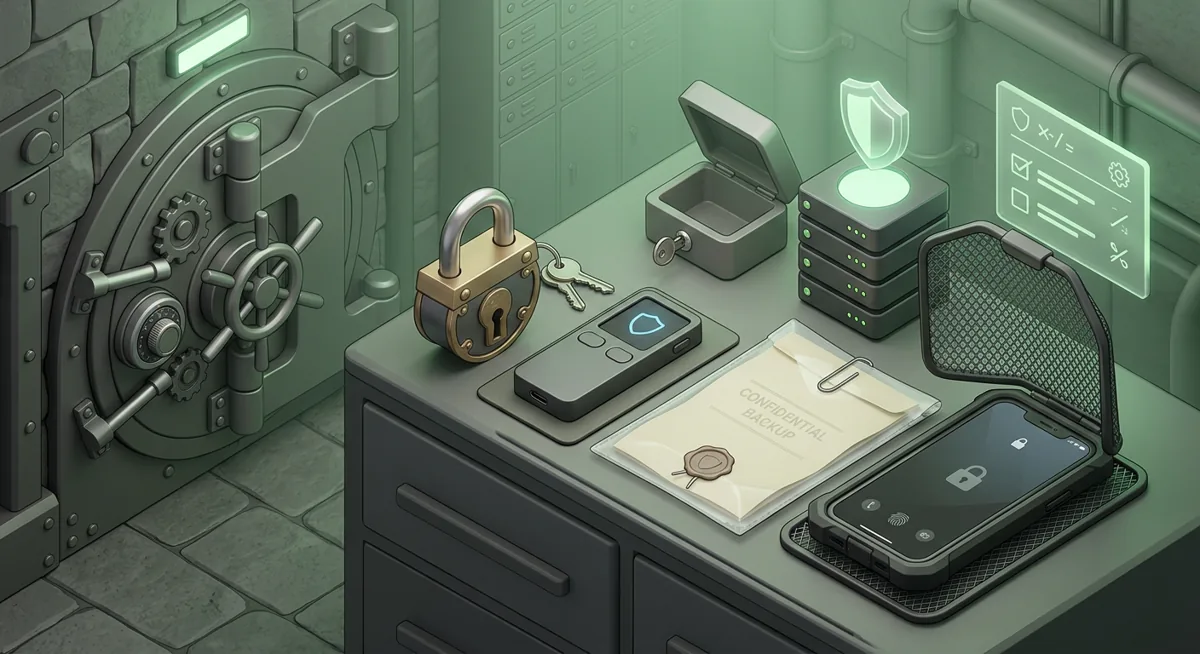
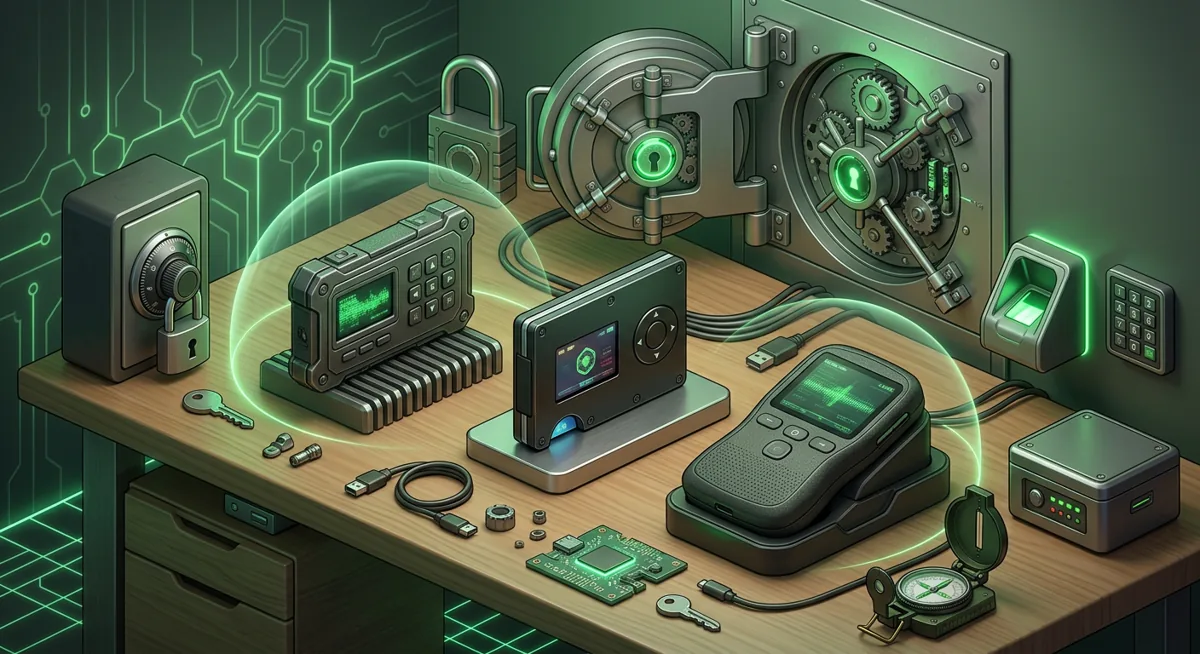
Protect Seed Phrases and Hardware Wallet Keys
I often encounter the following situation: a user is working on a regular laptop—with email open, browser tabs everywhere, and a wallet app running—and yet there’s a slight concern that something might be wrong with the device. If your digital assets are stored on that very device, malware and end-point threats can turn a simple mistake into a wallet emergency.

In short
- Keep the device that signs transactions separate from the device you use for browsing, email and daily work.
- Seed phrase protection means never typing the recovery phrase into a computer or phone unless you are deliberately restoring a wallet in a trusted flow.
- A Ledger Nano X helps by keeping signing on the device, but you still must verify addresses and approvals on its screen.
- Use a YubiKey or another hardware security key to protect your accounts on exchanges, email services, and password managers related to digital assets.
- If there is a risk that your seed phrase or private key has been compromised, transfer your funds to a new wallet created on a "clean" device, rather than trying to reuse the old one.
Key facts
| Ledger Nano X | |
|---|---|
| Supported coins & networks | Supported networks: Bitcoin, Ethereum, Solana, XRP, stablecoins Number of supported assets: Thousands of supported coins and tokens |
| Devices & platforms | Platforms: Desktop/laptop, Android, iOS |
| Price | — |
| Who controls the keys | — |
What should you have ready before protecting a wallet?
The plain risk is this: malware on a phone or computer can watch what you type, replace a copied address, trick you into approving a transaction, or capture a private key if you expose it on screen. A hardware wallet lowers that risk because signing happens on the device, not inside the everyday computer, but it does not remove the need to check what you approve.
For Ledger Nano X users, the device can manage Thousands of supported coins and tokens and supports Bitcoin, Ethereum, Solana, XRP, stablecoins. It works with Desktop/laptop, Android, iOS, which is convenient, but convenience also means you should be strict about which device you trust for setup and recovery.
Before you start, prepare:
- A hardware wallet such as Ledger Nano X, Trezor Safe 3 or Tangem, obtained through the maker or an official retail channel.
- A clean computer or phone you trust more than your daily browsing device.
- A private space where no camera, screen sharing session or helpful stranger can see your recovery materials.
- Paper or metal backup material for the recovery phrase, stored away from the internet.
- A password manager protected by a strong main password.
- A YubiKey or another hardware security key for email, exchange and password manager accounts.
- Time to slow down.
I also recommend reading a basic device hygiene checklist before moving funds. The Crypto Home Security Checklist: Virus Checker Basics is a useful companion if you are unsure whether your endpoint is in good shape.
Warning: if you type a recovery phrase into a compromised computer, paste a private key into a website, or approve the wrong address on the wallet screen, funds can be lost. The safest correction is usually to create a fresh wallet and move assets, not to keep trusting the exposed one.
How do I reduce malware risk around my digital assets?
Step one: separate browsing from signing
Use your everyday computer for reading, research and account management, but keep wallet signing on the hardware wallet. If your browser is tricked by a fake wallet prompt, the hardware wallet screen becomes your last checkpoint. Treat that small screen as the truth source, not the browser window.
Step two: clean up the endpoint before connecting
Update the operating system, remove unknown browser extensions, close remote access tools you do not actively use, and run your normal security checks. If the computer shows popups, unexpected wallet prompts, strange clipboard behavior or unknown login alerts, do not connect a wallet there.
Step three: install wallet software only from the official source
Do not search your way through ads, social posts or forum replies when setting up wallet software. Go to Ledger, Trezor, Tangem or Yubico by name through their official presence. Wallet drainers often imitate support pages and setup tools. For broader storage choices, see Self-Custody and Hardware Wallets for Safer Storage.
Step four: write the recovery phrase offline
During setup, the wallet may show a recovery phrase, which is a list of words. Write it down offline. Do not photograph it, email it, save it in notes, place it in cloud storage or type it into a chat.
Step five: verify every receive address on the device
When receiving funds, compare the address shown in the wallet software with the address on the hardware wallet screen. If they differ, stop. Clipboard-changing malware can replace an address after you copy it.
Step six: treat approvals as spending permissions
When using connected apps, read approval screens carefully. If a prompt asks for broad permission and you expected a simple receive action, reject it. If the request does not match your intent, do not approve.
Step seven: protect the accounts around the wallet
Your email, exchange account, cloud backups and password manager may not hold the seed phrase, but they can help someone reset accounts or impersonate support. Add a YubiKey or another hardware security key where supported. Use the Hardware Security Key Checklist for Wallet Safety if you want a focused setup path.
Step eight: keep a small test habit
Before moving a meaningful amount, send a small test amount first when network conditions and fees make that sensible. Confirm the receive address, then send the rest only after the test arrives as expected.
How does wallet recovery work without exposing the seed phrase?
Recovery is the process of regaining access to a wallet using a recovery phrase or another approved backup method. This phrase is not a link to reset your password. It is the key information needed to regain control of your wallet.
During a standard recovery, the recovery phrase should be entered directly into a trusted hardware wallet or into the official recovery interface. You should not enter it on a website at the request of a support representative, nor should you enter it on a computer simply to verify that it is correct.
If the recovery phrase was photographed, entered into a computer, saved online, shared with customer support, or shown during screen sharing, I consider it to have been made accessible to unauthorized parties. The security measures involve creating a new wallet with a new recovery phrase on a “clean” device, and then transferring funds to the addresses from this new wallet. For a more detailed step-by-step guide, refer to the resources Loss of a Seed Phrase or Key Leak: A Cryptocurrency Checklist for Cold Wallets and Steps to Recover a Wallet if You Lose Access.
Also, remember that a hardware wallet’s PIN is not the same as a recovery phrase. The PIN protects the physical device itself. The recovery phrase protects the wallet itself.
What should I do when something feels wrong?
The address changes after I copy it
Stop using that device for wallet actions. Clipboard replacement is a classic endpoint warning sign. Move to a clean device, verify addresses on the hardware wallet screen, and consider the old endpoint untrusted until it is cleaned and reviewed.
My wallet app asks for the recovery phrase
Pause. A normal receive, send or balance check should not require the recovery phrase. If you are not intentionally restoring a wallet, close the prompt and return through the official wallet software path.
I approved a transaction I do not understand
Disconnect the wallet from connected apps, review recent approvals and move unaffected funds to a fresh wallet if exposure is likely. The exact response depends on the asset and network, but the principle is simple: stop new approvals first, then protect what remains.
I think my computer has malware
Do not connect the hardware wallet to that computer. Use a different trusted device for urgent protective moves. Afterward, rebuild the risky endpoint, remove unknown extensions and rotate passwords from a clean device. Review Wallet Basics for Safer Crypto Storage if you need to reset your storage plan.
I lost the hardware wallet but still have the recovery phrase
Stay calm. If the recovery phrase is safe and private, you can usually restore access with a compatible wallet. If the lost device had a weak PIN or you suspect someone may have seen the phrase, create a fresh wallet and move funds as soon as you safely can.
Questions and answers
- Does a hardware wallet protect digital assets from all malware?
No. A hardware wallet allows you to store your signing data separately from your regular computer, but malware can still trick you with fake requests, spoofed addresses, or confusing confirmation prompts. That’s exactly why I always check the transaction details on the device’s screen.
- Should I store my seed phrase in a password manager?
I do not recommend storing your recovery phrase in any account connected to the Internet. A password manager is useful for passwords for exchanges, email, and apps, but your wallet’s recovery phrase should be stored offline.
- Is a YubiKey the same as a hardware wallet?
No. The YubiKey from Yubico is a hardware security key designed to protect login credentials. A hardware wallet, such as the Ledger Nano X, is used to store keys and confirm cryptocurrency transactions.
- What if I already typed my recovery phrase into a computer?
Consider this phrase compromised. On a clean device, create a new wallet with a new recovery phrase and transfer your funds to new addresses. Do not continue to use the old wallet to store significant amounts of funds.