Scam breakdown
McAfee Scam Alerts Targeting Crypto Wallet Users
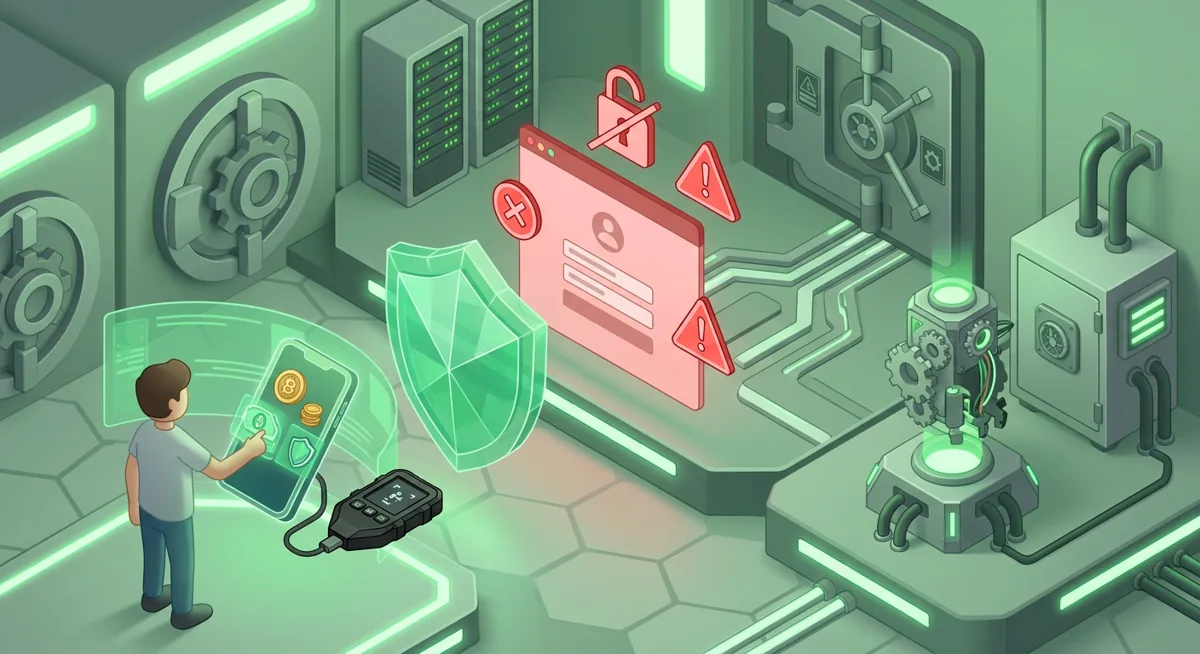
You’re checking your wallet balance when a warning pops up on the screen: McAfee reports that your device is infected, your MetaMask is at risk, and customer support can resolve this issue right now. I’ve encountered situations like this many times while responding to incidents, and the danger lies not in the pop-up window itself, but in the pressure that follows it.

In short
- Scams involving McAfee typically use fake virus warnings, subscription renewal notifications, or support chat messages to trick you into revealing your wallet access or confirming a fraudulent transaction.
- Real antivirus help does not need your recovery phrase, private key, wallet password, or screen access to your crypto wallet.
- If you shared your recovery phrase or authorized a suspicious transaction, transfer funds from the wallets that are still secure and, if possible, revoke any risky permissions.
- Use official websites by name, trusted app stores, hardware-wallet habits, and separate browser profiles to reduce antivirus scam crypto risk.
How does an antivirus or tech-support crypto scam work?
A phishing antivirus fake alert is designed to make a normal computer problem feel like an emergency wallet problem. The message may use McAfee, Avast, Malwarebytes, or Google branding. It may say your device has a virus, your subscription failed, your browser is unsafe, or your crypto wallet is exposed.
The scammer’s real goal is usually one of these outcomes:
- Get you to type a recovery phrase into a fake “security check.”
- Get remote access to your screen while your wallet is open.
- Push you to install a fake wallet, fake antivirus tool, or fake browser extension.
- Trick you into signing a wallet message or token approval.
- Move the conversation into chat, phone support, or a search result that looks official.
Here is the pattern I see most often:
Step one: A scary alert appears. It may be a browser notification, search ad, email, calendar alert, or pop-up pretending to be McAfee or Google.
Step two: The warning names crypto wallets to raise the pressure. MetaMask is a common lure because it supports Hundreds of thousands of tokens and runs on Chrome, Firefox, Brave, Edge, Opera, iOS, Android, Web. Phantom and Coinbase Wallet are also used because many people store a mix of assets there; Phantom supports Base, Solana, Ethereum, Bitcoin, Polygon, and Coinbase Wallet supports millions of onchain assets.
Step three: The fake support flow asks for “verification.” In crypto, that word is dangerous when it means a recovery phrase, private key, password, or wallet connection.
Step four: You are asked to act quickly. The scammer may say your wallet will be locked, your tokens will disappear, or your computer is actively compromised.
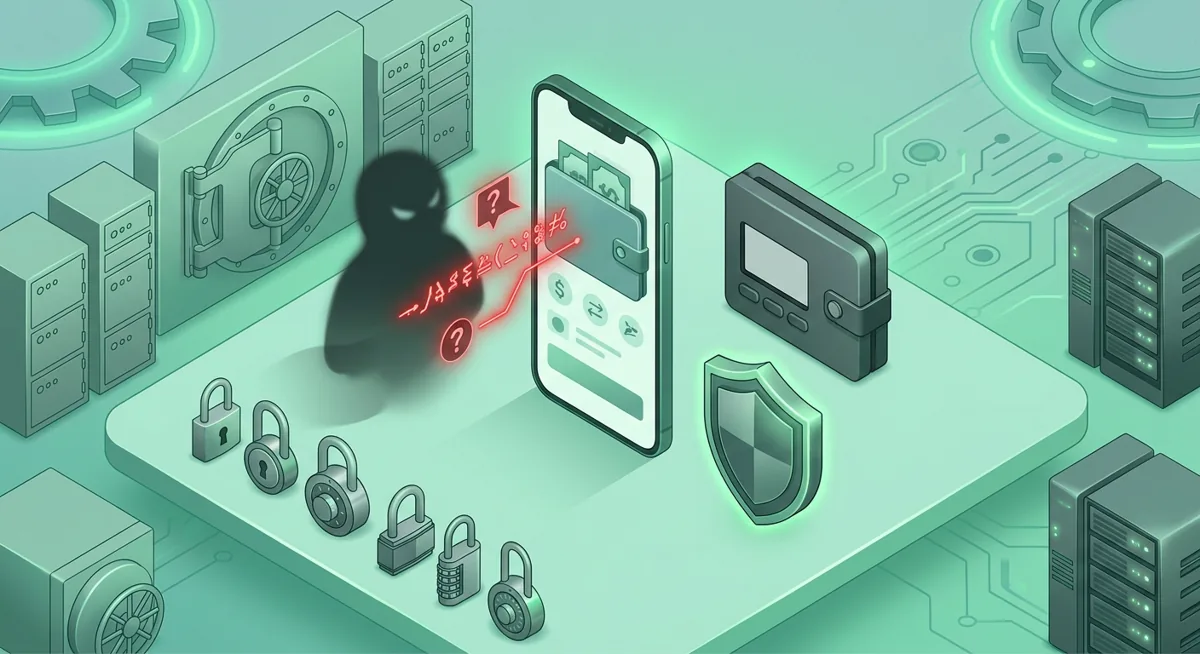
Step five: The loss happens through your own wallet action, not magic. If you reveal a recovery phrase, the scammer can restore the wallet elsewhere. If you approve a malicious transaction, assets can be drained even if you never shared the phrase.
Warning: If a support agent asks you to “confirm ownership” by entering a list of words from your wallet backup, stop. That single mistake can hand over the wallet.
What are the warning signs of a McAfee scam or fake antivirus alert?
I advise people not to rush and to carefully review the request, rather than focusing solely on the logo. Brand names are easy to copy; what really matters is behavior.
"Red flags" include:
- A notification appears on the web page and purports to offer a scan of your entire device.
- The message claims that MetaMask, Phantom, or Coinbase Wallet has been compromised.
- A “support” representative asks you to share your screen while your wallet is unlocked.
- You are asked to enter your recovery phrase on the website to “clean up” your wallet.
- A search result or advertisement is passed off as urgent antivirus support.
- The page contains grammatical errors, countdown timers, or threats.
- You are asked to disable your browser’s security features, wallet alerts, or the transaction simulation feature.
- A “representative” claims that your hardware wallet needs to be “synced” by entering its recovery phrase online.
- The offer seems suspicious because it involves fees or subscriptions that don’t apply to this product. For example, Phantom is a free wallet (completely free to implement and use), so an unexpected charge for “activating” antivirus software for Phantom should raise a red flag.
This security tool may warn you about risky pages, but it should not require you to enter your wallet’s confidential information. Google warnings, Avast scans, Malwarebytes detections, and McAfee alerts are designed to help you decide whether to leave the page or clean your device. They are not a reason to disclose the login credentials for your wallet, which you manage yourself.
The same applies to wallet support. When using MetaMask, Phantom, or Coinbase Wallet, you should never be asked to enter your recovery phrase. If someone says, “You need it to verify your account,” I consider that an attempt to steal your funds.
As for the more common wallet scams, I would recommend comparing what you see with our guide on cryptocurrency scams targeting wallets. If the warning appeared after a strange pop-up or browser notification, also check out the checklist on the basics of virus scanning.
What should I do if I already interacted with the alert?
First, take a breath. Panic helps the scammer. Your next step depends on what you shared or approved.
Step one: Disconnect from the fake support session. End screen sharing, close the chat, and do not argue with the person. If they still have access to your device, use another trusted device for recovery steps.
Step two: Identify what happened. Ask yourself:
- Did I only see the alert?
- Did I enter a wallet password?
- Did I reveal a recovery phrase or private key?
- Did I connect a wallet to a site?
- Did I sign a message or approve a transaction?
- Did I install a new extension or app?
Step three: If you revealed a recovery phrase, treat that wallet as exposed. Do not reuse it. Move any remaining funds to a newly created wallet from a clean device, preferably with hardware-wallet protection. If the wallet is empty, still assume future deposits would be at risk.
Step four: If you signed approvals, use a trusted approval review tool or wallet safety feature from a clean environment to revoke risky permissions where possible. This can help when assets have not yet moved, but it does not reverse completed transfers.
Step five: If you use a custodial account connected to the same device or email, secure it too. Change the email password, reset the exchange password, review active sessions, and turn on stronger sign-in protection.
Step six: Preserve evidence. Keep screenshots, transaction hashes, email headers, phone numbers, and chat names. Do not send more funds to anyone claiming they can recover crypto for an upfront fee.
Step seven: Follow a full incident plan. I would use Crypto Theft Response: Stop Loss and Secure Wallets as the main checklist. If a recovery phrase or hardware wallet key may be exposed, use Lost Seed or Exposed Keys: Cold Wallet Crypto Checklist.
The “what if” that matters most is this: if the attacker saw only your screen but not your phrase, you may still have time to secure accounts. If they received the phrase, the wallet should be retired.
How can I protect my wallet from tech support scam crypto traps?
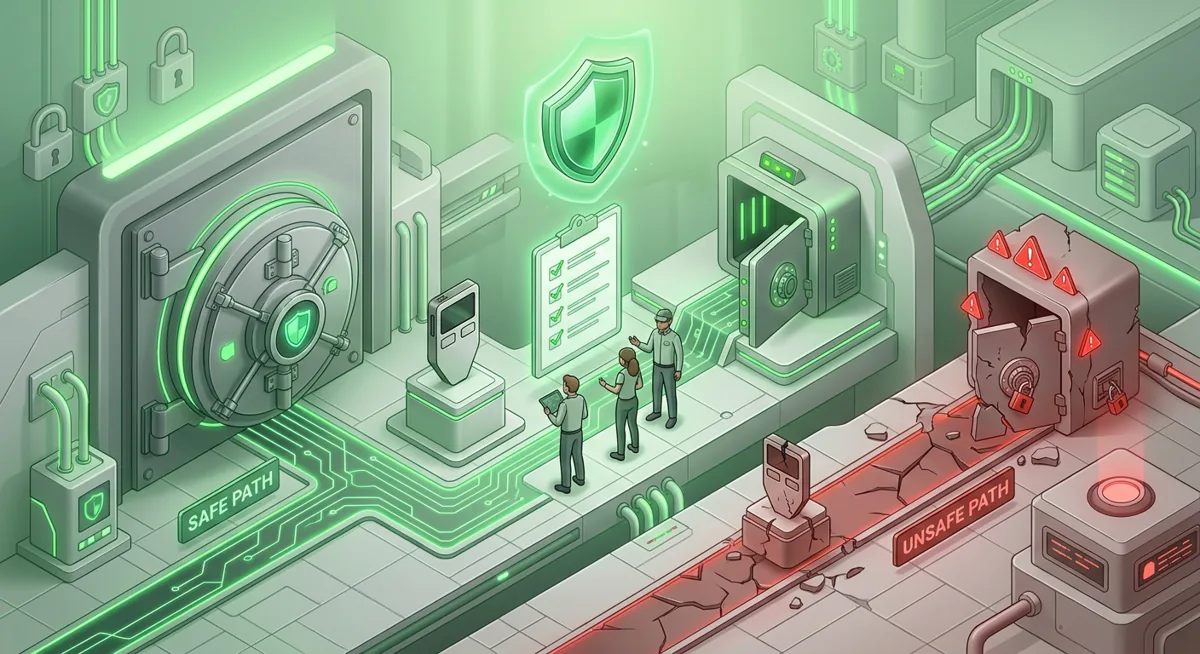
Good prevention is boring on purpose. It removes urgency from the scammer’s script.
Step one: Separate security checks from wallet activity. If you see an antivirus warning while using MetaMask, Phantom, or Coinbase Wallet, close the wallet first. Then investigate from a calm, clean starting point.
Step two: Use official sources by name. For McAfee, Avast, Malwarebytes, Google, MetaMask, Phantom, and Coinbase Wallet, go through the official website or the app store you already trust. Do not follow pop-up instructions.
Step three: Protect the recovery phrase like cash plus identity. Store the list of words offline. Never type it into a website, support form, chat box, or shared screen. For more detail, I recommend Protect Seed Phrases and Hardware Wallet Keys.
Step four: Keep wallets compartmentalized. Use one browser profile for browsing and another for wallet activity. Keep small spending wallets separate from long-term storage. Consider hardware wallets for larger balances; start with Self-Custody and Hardware Wallets for Safer Storage.
Step five: Review browser notifications. Many fake McAfee scam pop-ups are just notification permissions from a bad site. Remove sites you do not recognize and block prompts you do not need.
Step six: Slow down before every signature. Ask, “What asset can this approval move?” and “Why does antivirus support need a wallet signature?” If the answer is unclear, reject it.
Step seven: Teach the rule to anyone who can access your device. Family members, assistants, and coworkers may see a scary alert and try to help. I like a simple household rule: no support session while a wallet is open.
For a wider safety baseline, keep Wallet Basics for Safer Crypto Storage and the Scams and Wallet Incident Response Overview nearby. The goal is not fear; it is having a practiced response before pressure appears.
Questions and answers
- Is every McAfee pop-up a scam?
No. Some notifications may be genuine security warnings. A red flag is when a notification prompts you to take action with your wallet, contact remote support, enter your recovery phrase, or make an urgent payment outside the product’s normal workflow.
- Can antivirus software fix a drained crypto wallet?
Antivirus software can help clean up your device or block dangerous websites, but it cannot reverse transactions that have already been made on the blockchain. Your top priority is to secure your remaining funds and take any vulnerable wallets out of circulation.
- What if I only connected my wallet but did not share my recovery phrase?
You may still be at risk if you signed approvals or messages. Disconnect the site, review permissions from a trusted environment, and move valuable funds if you are unsure what was approved.
- Should I trust a Google search result for wallet or antivirus support?
Be careful. Scammers buy ads and create fake support pages. I prefer to go to the official website by typing its name into the browser, or to use the support menu in the app you already have installed.
- Where should I start if I lost access after the scam?
Start by cleaning up your device, securing your email, and following the recovery instructions. Our guide “Steps to Recover Your Wallet If You Lose Access”] is a good next step.