Security checklist
Email Account Security for Crypto Wallet Owners
You open the wallet app and see a password reset email that you didn't request. I see this as a red flag: the wallet may be fine for now, but you need to pay attention to the email account linked to it before someone else uses the recovery process in your name.
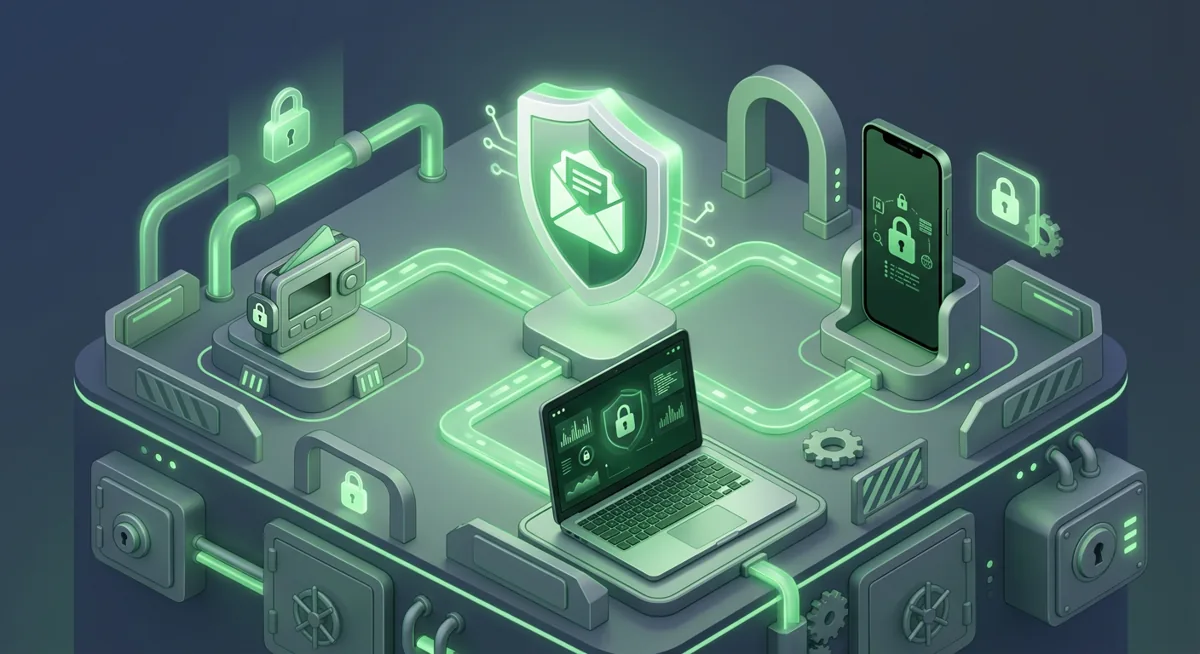
In short
- Your email could be used to leak wallet data, gain access to an exchange, access cloud backups, and impersonate customer support representatives.
- Use the official account security pages for Google, Yahoo, Microsoft, and Apple, rather than the links provided in warning emails.
- Multifactor authentication works most effectively when recovery settings, trusted devices, and old sessions are cleared simultaneously.
- If there is a possibility that your email or account on the platform may have been compromised, secure them before transferring funds or contacting the wallet's support team.
- Under no circumstances should you store your recovery phrase, private key, or wallet backup in emails, cloud notes, screenshots, or message threads.
What should I check first when an email is tied to my wallet?
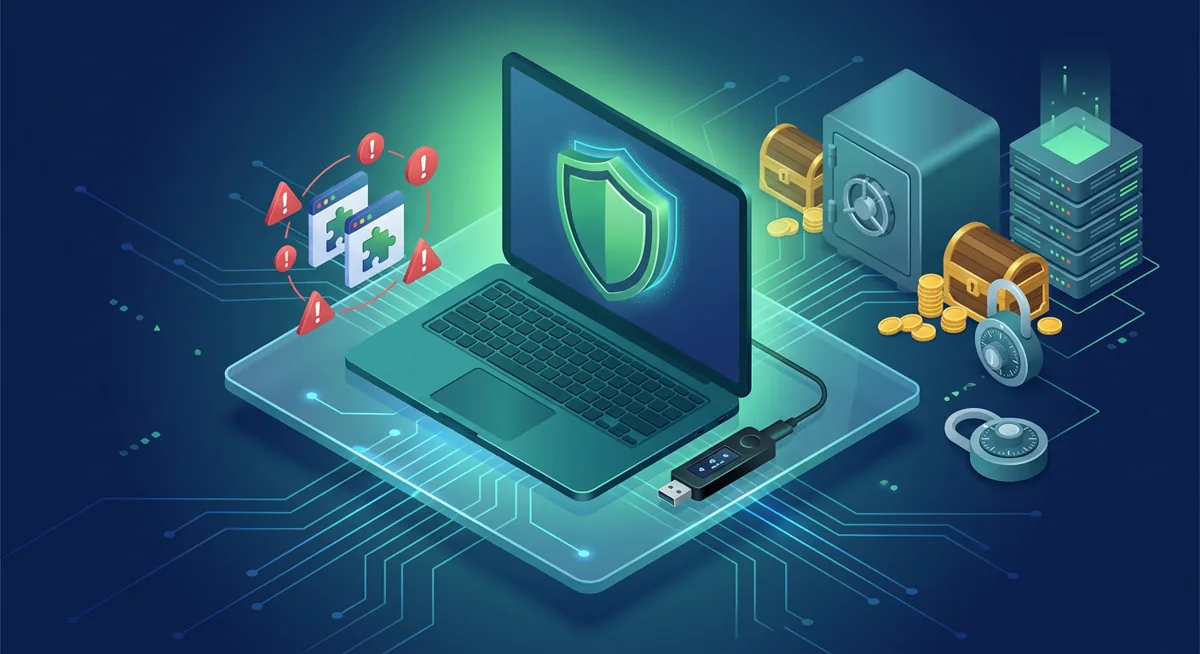
Start with the risk in plain words: if someone controls your email, they may be able to reset exchange passwords, read wallet support messages, find cloud backups, impersonate you, or pressure you into approving a bad transaction. I do not panic when I see this. I isolate the account, remove easy entry points, and then review anything connected to money.
Step one: enter account security pages safely
- Open your browser or device settings yourself. Do not use buttons inside urgent emails, texts, or pop-ups.
- For Google, go to the Google Account security area from your signed-in Google account.
- For Yahoo, use the yahoo account security page reached from Yahoo Mail or the official Yahoo account area.
- For Microsoft, use the Microsoft account security area and review Microsoft Defender warnings from within Microsoft products.
- For Apple, review Apple ID and iOS security settings from your device settings or the official Apple account area.
- If a page claims your wallet will be locked unless you type a recovery phrase, close it. A real account security page does not need your wallet recovery phrase.
Step two: change the password before you investigate deeply
- Use a new password that you have not used anywhere else.
- Prefer a password manager so the password can be long and unique without being memorized.
- Do not save the new password in email drafts, cloud notes, screenshots, or chat messages.
- If you reused the old password on an exchange, wallet service, cloud account, or phone account, change those next.
I do this early because an open session can race you. If the password is old or reused, the safest assumption is that it may already be known somewhere else.
Step three: turn on multi-factor authentication with care
- Enable multi-factor authentication on the email account and on every platform account linked to wallets.
- Use an authenticator app, hardware security key, or platform passkey where available.
- Avoid using SMS as the only extra factor when stronger options are available.
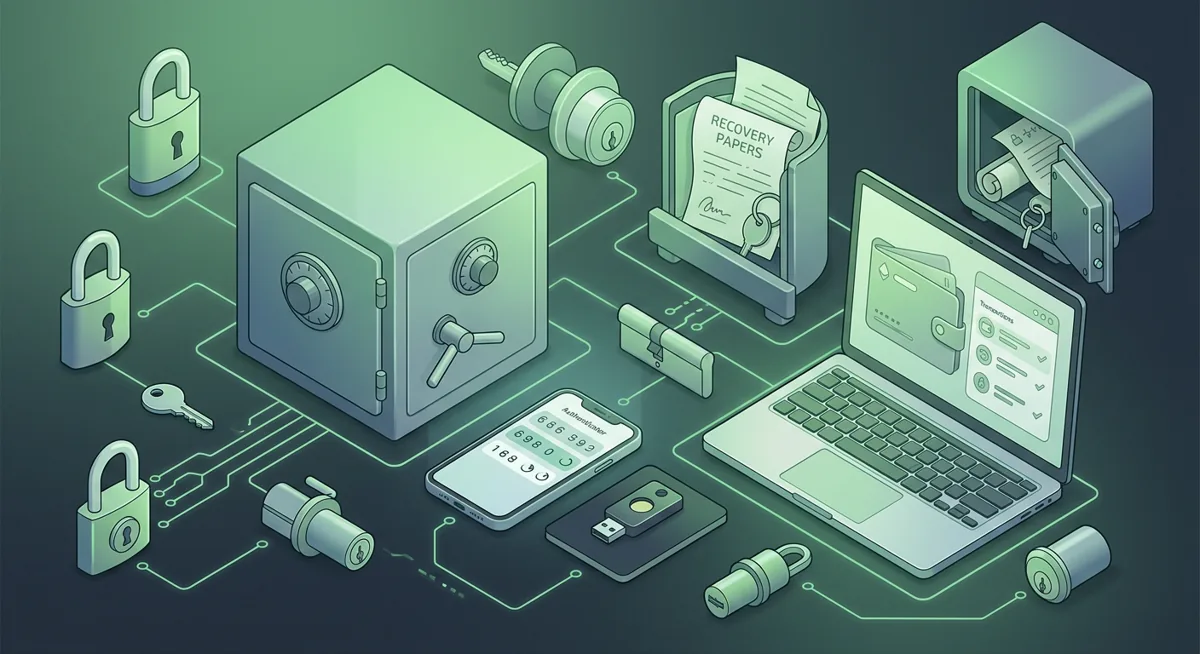
- Save recovery codes offline in a private place, not in the same email account they protect.
- Remove old authentication methods you no longer control.
Multi-factor authentication is not magic, but it blocks many password-only takeovers. The mistake I see most often is adding it while leaving old recovery methods active, such as an abandoned phone number or forgotten backup email.
Step four: review recovery options like an attacker would
- Check backup email addresses, phone numbers, recovery contacts, and trusted devices.
- Remove anything unfamiliar, outdated, shared, or no longer under your control.
- If your cloud account stores wallet app backups, treat that cloud account as wallet infrastructure.
- Search your mailbox for wallet names, exchange names, backup files, and support tickets.
- Delete sensitive attachments only after you understand whether they are needed for taxes or records, then store necessary records safely outside email.
Never search for or handle a wallet recovery phrase in email unless you are trying to remove an unsafe copy. If you find a list of words, a private key, or a wallet backup in email or cloud storage, assume that wallet needs a safer recovery plan.
Warning: If someone has access to your email and you move funds while your exchange, cloud, or wallet recovery routes are still exposed, they may follow your activity and target the next account. Secure the email and platform accounts first, then move assets from a clean device if needed.
Step five: sign out sessions and inspect devices
- Sign out of unknown sessions from Google, Yahoo, Microsoft, Apple, and exchange accounts.
- Revoke access for apps, browser extensions, and services you do not recognize.
- Check mail forwarding rules, filters, delegated access, and connected mail clients.
- Look for rules that hide security emails, archive wallet messages, or forward copies elsewhere.
- Review devices that are allowed to receive prompts or approvals.
This is where many people find the quiet persistence: a mail rule that hides alerts, a device they sold, or an app permission they accepted during a fake support chat.
Step six: harden the device you use for wallet actions
- Update the operating system, browser, and wallet app from official sources only.
- Remove unknown extensions, remote access apps, and screen-sharing tools you did not deliberately install.
- Use Microsoft Defender or the built-in security tools on your system to review device health.
- On iOS, check device passcode strength, Face ID or Touch ID settings, Apple ID access, and whether unknown configuration profiles are installed.
- Keep wallet work separate from casual browsing when possible.
For a deeper device review, I would pair this with the Secure Devices Crypto Wallet Checklist or the Crypto Device Security Checklist for Windows and Phones.
Step seven: protect wallet and exchange accounts after email is stable
- Change exchange passwords after the email password is changed.
- Turn on multi-factor authentication for exchanges, wallet dashboards, and support portals.
- Review withdrawal addresses, API keys, connected apps, and recent login history.
- If a support thread asks for a recovery phrase or remote screen access, stop immediately.
- Before approving any urgent transfer, compare the situation with known scam patterns in Common wallet scams: phishing and fake recovery traps and Crypto Scam Checks Before You Move Funds.
I care about the order here. If you secure the exchange but leave email recovery exposed, the attacker may simply reset the exchange again. If you secure email but leave an old exchange API key active, you may still have a problem.
Why do these email security steps protect wallets?
Account security pages reduce phishing pressure
Real account security pages are boring by design. They sit inside Google, Yahoo, Microsoft, or Apple account settings and show sessions, recovery methods, and sign-in protections. Scam messages try to move you away from that calm environment and into a fake urgency loop. That is why I tell people to navigate manually rather than trust a warning button.
Password changes only help when recovery is cleaned up
A new password is useful, but account recovery can override it. If an old phone number, forgotten backup email, or shared device remains trusted, someone may use the recovery path instead of the password path. I think of recovery options as spare keys. Every spare key should belong to you, be current, and be stored safely.
Multi-factor authentication protects the login, not every decision
Multi-factor authentication can stop many unwanted sign-ins, especially when the password was reused or captured by a phishing page. It does not protect you from approving a malicious wallet transaction, sharing a screen with a fake support agent, or typing a recovery phrase into a website. That is why the checklist combines sign-in protection with scam awareness and device checks.
Email often contains the map to your money
Even when email does not hold a private key, it can reveal which exchanges you use, which wallets you installed, where support tickets exist, and whether cloud backups are enabled. If I were helping you after a suspicious login, I would assume the mailbox contents are intelligence for the next scam attempt.
Device health matters because prompts happen on devices
Google prompts, Microsoft sign-ins, Apple ID approvals, authenticator codes, wallet confirmations, and exchange alerts all show up on devices. A weak device can turn a strong account into a fragile one. Keep the device clean, updated, and free from unnecessary extensions or remote access software.
The safest response is calm sequencing
If something feels wrong, do not jump straight into moving assets while frightened. First secure email, then secure platform accounts, then inspect devices, then review wallet and exchange exposure. If you are about to contact support, use the Wallet Blockchain Security Checklist Before Support so you do not hand sensitive information to an impersonator.
Questions and answers
- Should I use the yahoo account security page if my wallet email is Yahoo?
Yes. Open Yahoo Mail or your official Yahoo account on your own and go to the security page from there. Do not click on any links in an urgent email, especially if the message mentions a wallet being locked, restoring access, or lost funds.
- Is email security enough to protect a self-custody wallet?
No. Email security ensures the protection of account recovery procedures, support messages, access to cloud services, and login credentials for exchanges. The security of a self-custody wallet also depends on the protection of the recovery phrase, private keys, the signing device, and the transaction approval process.
- What if I stored a wallet recovery phrase in email or cloud notes?
Treat that wallet as exposed. Do not type the phrase into websites or send it to support. Secure your email and devices, then move assets using a clean process and create a new wallet backup kept offline.
- Are Apple, Google, and Microsoft account security pages basically the same?
They all share a common goal: to display login methods, trusted devices, recovery methods, and additional authentication options. Screens vary, so I’ll focus on the principles: go directly to the settings, remove anything you can’t control, and strengthen your login security.
- When should I move funds after a suspicious email login?
Transfer funds only after you have verified that you have full control over your email account, your recovery credentials, your accounts on various platforms, and the device you will be using. Transferring funds too early could reveal your next destination or lead you to approve a hasty decision made in error.